
Community guide
Choicer Voicer Microphone Not Working?
A practical troubleshooting guide for microphone detection, silent recordings, audio format problems, delay, and distorted playback in The Choicer Voicer.
Updated Sep 6, 2026
This guide is for the desktop game first. If you are using Play Online, browser permission and the browser’s selected input device are additional checks.
Start with the symptom
Use the symptom that matches what you hear. The game’s microphone test separates live input, recording, and playback, so a microphone can work in one test while failing in another.
Basic microphone checks
- Close other apps that may be holding the microphone, including meeting, streaming, and voice-chat apps.
- In the game’s microphone test, select the intended input device and a working output device.
- Speak at your normal play volume and confirm that the input meter or waveform responds.
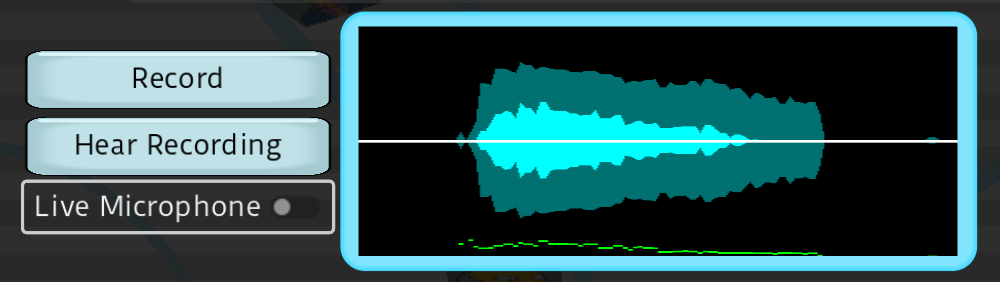
- Record a short phrase, then use Hear Recording. A live microphone signal and a replay are separate tests.
- If the signal is too quiet, move closer or raise gain slightly. If the waveform is constantly at maximum, lower gain to avoid clipping.
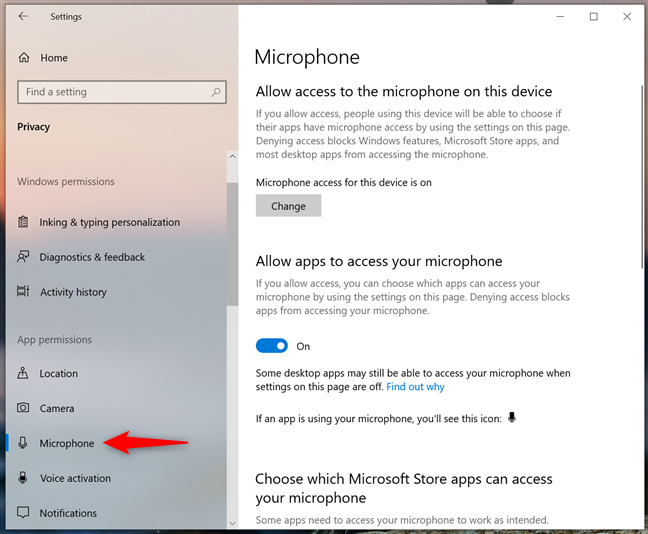
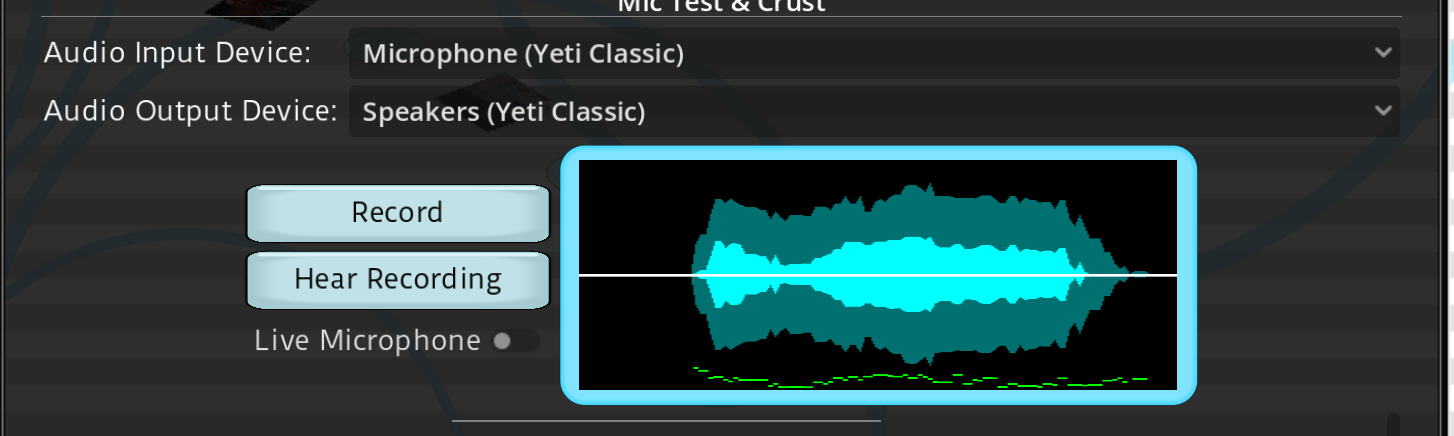
Live Mic works but replay is silent
This usually means the microphone is reaching the live monitor, but the recording or playback path is not working. Work through these checks in order:
- Confirm the output device in the game is the headphones or speakers you are actually wearing.
- Turn Live Microphone off, record a short phrase, and press Hear Recording. This isolates replay from live monitoring.
- Try a different output device temporarily. If headphones work but speakers do not, the issue is likely the output route rather than the microphone.
- Restart the game after changing the system’s default input or output device.
- If the waveform is visible but playback is still silent, continue with the stereo and channel checks below.
Check surround sound and audio format
Officially documented
The developer has reported that recording can fail when audio is configured with more than one channel in a surround or multichannel setup. Before testing advanced audio software, switch temporarily to a plain stereo configuration.
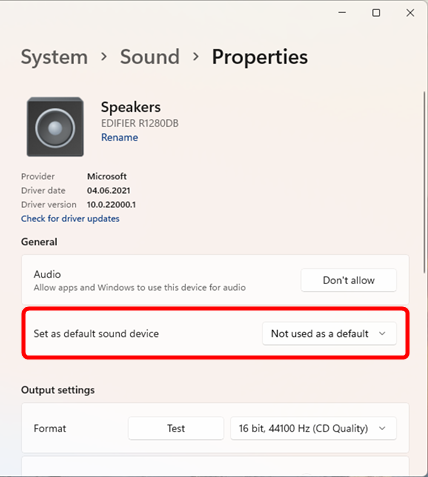
- On Windows, open Settings → System → Sound → More sound settings.
- Open the Recording tab, choose your microphone, then open Properties → Advanced.
- Choose a standard 44.1 kHz or 48 kHz format with one or two channels, then apply the change.
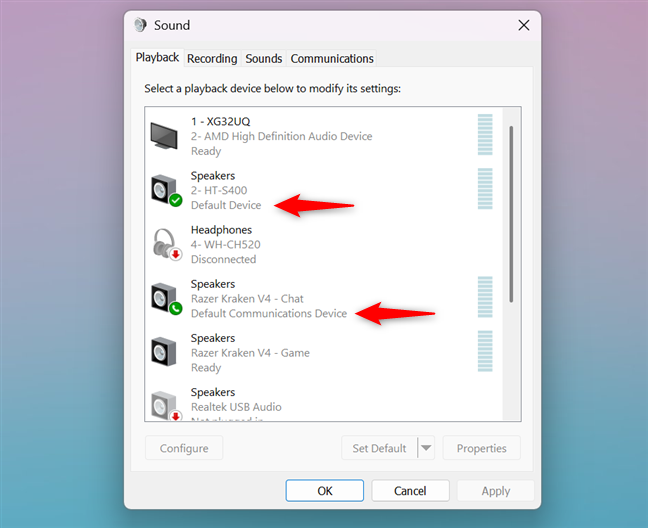
- Check the Playback tab as well and temporarily choose a normal stereo output instead of surround or spatial audio.
- Restart The Choicer Voicer and repeat the short-recording test.
Bluetooth, USB, and audio interfaces
Community-reported checks
- Test with one microphone only. Disconnect unused webcams, controllers, virtual microphones, and audio interfaces for the first pass.
- If you are using Bluetooth, test a wired headset or USB microphone. Bluetooth profiles can change the available input and output paths when the microphone is active.
- If you are using an interface such as a Focusrite device, test the microphone directly through the interface with other audio-routing tools closed.
- Disable audio enhancements, spatial audio, and virtual mixer effects temporarily. Re-enable them one at a time after the basic test works.
These are isolation steps, not requirements. A working Bluetooth or interface setup may still be valid; the goal is to reduce the number of audio layers while identifying the failing path.
Microphone delay and sync
Delay can come from Bluetooth processing, audio interfaces, monitoring settings, or other software in the signal path. Start with a wired microphone or headset, close audio-routing tools, and compare a short line against the game’s timing.
- Turn off direct monitoring or echo monitoring if you are hearing both the hardware monitor and the game’s live signal.
- Use one sample rate across the microphone, output device, and audio interface.
- Test without Bluetooth, virtual cables, noise suppression, or spatial audio.
- If short lines are aligned but a long dub gradually drifts, record a shorter test and report the pack length and game version in the official discussion.
Robotic, clipped, or distorted audio
- Lower the microphone gain until normal speech no longer pins the input meter at maximum.
- Move closer to the microphone instead of compensating with extreme gain.
- Disable enhancements, noise suppression, and virtual mixer effects for one test recording.
- Use a standard stereo format and compare the same phrase in another recording app. If both recordings distort, check the system or hardware path first.
Known limitations and when to report an issue
The 0.5.3 update introduced Dub Preservation, but the official release discussion still contains unresolved microphone reports. Do not assume that updating alone will fix every device or audio-routing problem.
When asking for help, include:
- Game version and operating system.
- Microphone and output device model, plus whether the connection is Bluetooth, USB, or through an audio interface.
- Sample rate and channel setting.
- Whether Live Microphone works, whether a waveform appears, and whether Hear Recording is silent or distorted.
- Whether the problem affects a short test line, a particular Dub Pack, or every pack.
For unresolved cases, use the official microphone discussion so the developer and other players can compare the setup with known reports.